How & Why to Create a Duplicate Before Making Edits
If you’ve ever made edits to your Squarespace site, saved the page, and then realized you made a mistake and desperately tried to go back to the original, you know how upsetting that can be.

I particularly appreciate that duplicating a site will not change anything on the original, live site.
It’s also stress-relieving that any changes I make to the duplicate site will not sync to the original.
I make a duplicate of every 7.1 site I work on.
To make a duplicate of (almost) your entire site:
When logged in, click on your Account Dashboard
Click … on the site you want to duplicate
Click “Duplicate Website” (takes a few minutes, depending on the size of your website)
Your duplicate site will have the same site title but will end with the word “Copy.”
Some site-specific settings will not duplicate, but having a duplicate of MOST of your website, particularly the content pages, is handy insurance before making any major edits.
What will not duplicate with this feature?
Add-on features and subscriptions, like domains and Email Campaigns
Audio files uploaded to audio blocks
Blog comments
Demo content or content marked for deletion, like pages and blog posts in trash cans
Files uploaded through the link editor
Free or premium licensed stock images
Images and videos in the Asset library that aren't used on the pages of the site
Saved sections (you can save a section to your “account” and reuse on the duplicate site)
Selling settings, including orders, discounts, and subscriptions
Third-party integrations that require authenticated access, like connected accounts and API keys
Website-specific settings and panels, like analytics, billing plans, contacts, and contributor permissions
Sites with over 150 pages
Duplicating “SECTIONS”
When I’m building on Squarespace, I reuse “sections” frequently. That way, when I want to replicate the style or formatting that I used within a specific section, I can reuse it anywhere on my site or on another Squarespace 7.1 site that I own or manage. This saves a lot of time!
Here’s how to take advantage of the “save section” feature:
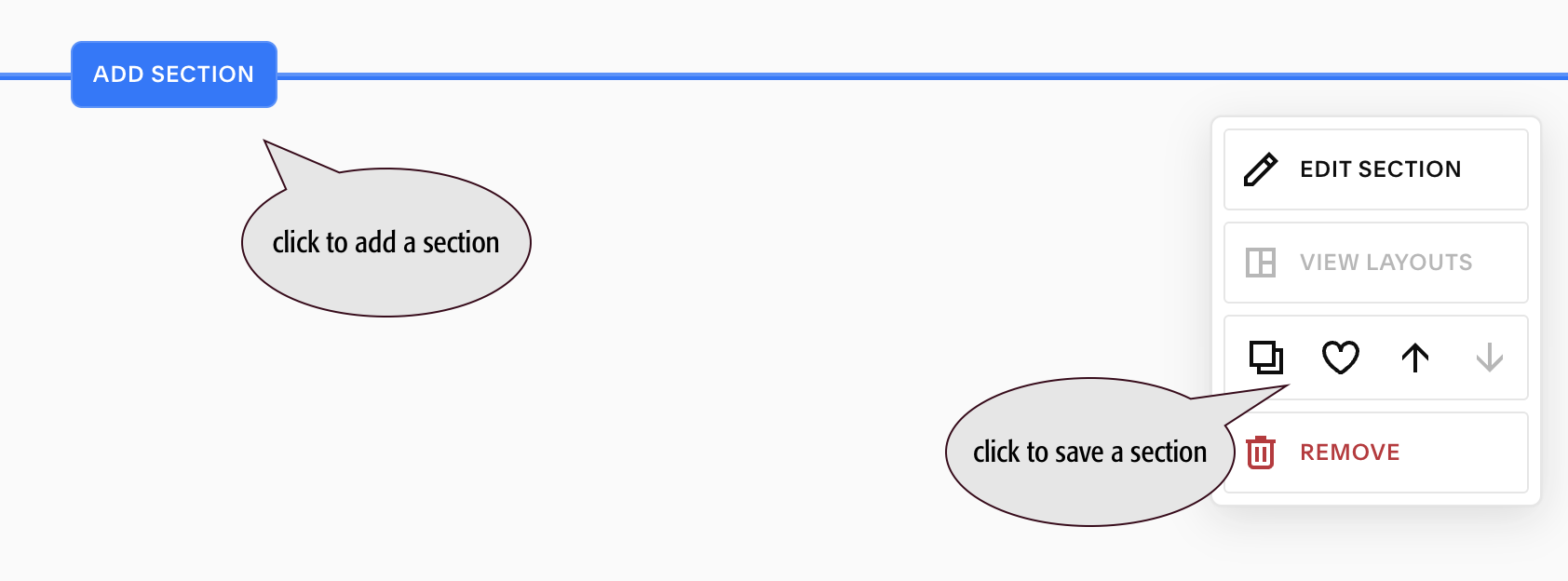
Hover your mouse anywhere within the section you want to duplicate. You must be in EDIT mode. You’ll see the heart icon in the floating section toolbar.
Click on the “heart icon” and save to your website.
If you want to tackle duplicating your website, individual sections, pages, and more, Squarespace’s video explains it all:
An expert eye without an agency price tag
That is precisely what Wallis Williams Design can help you with.